Step-By-Step Guide
Adding property images to your Offering Memorandum (OM) is simple and can be done in just a few steps using the visual editor.
Option 1: Use the Property Images Tab
Click the “Property Images” tab in the left sidebar.
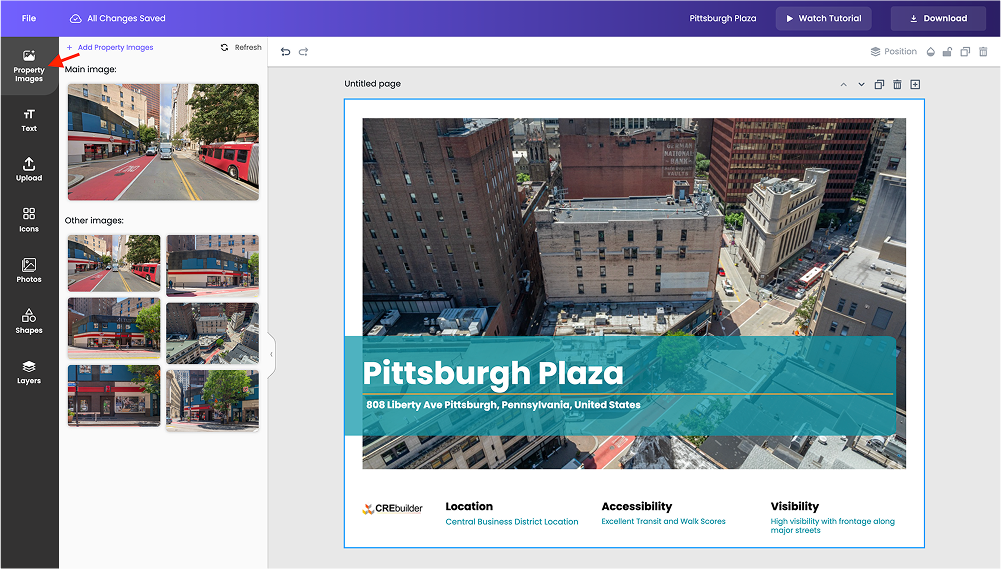
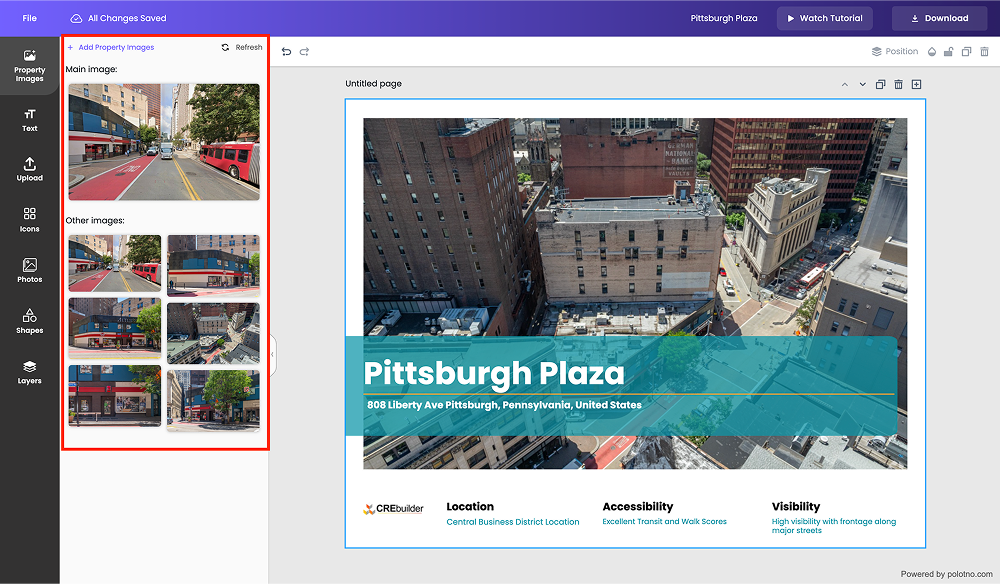
You'll see all the images already linked to your property — ready to drag and drop into any page.
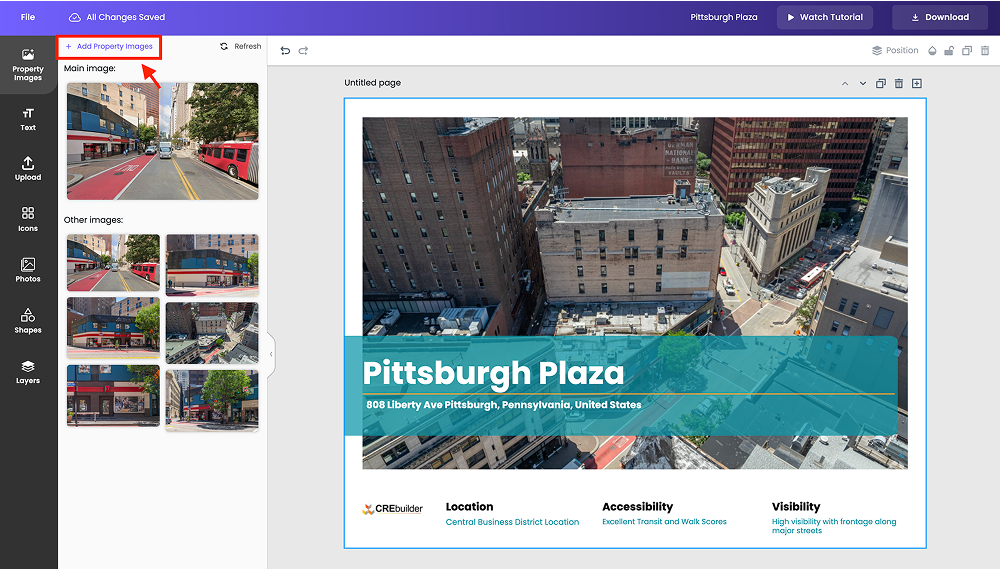
To upload new images, click “Add Property Images.”
This will take you to the property form where you can add or remove images.
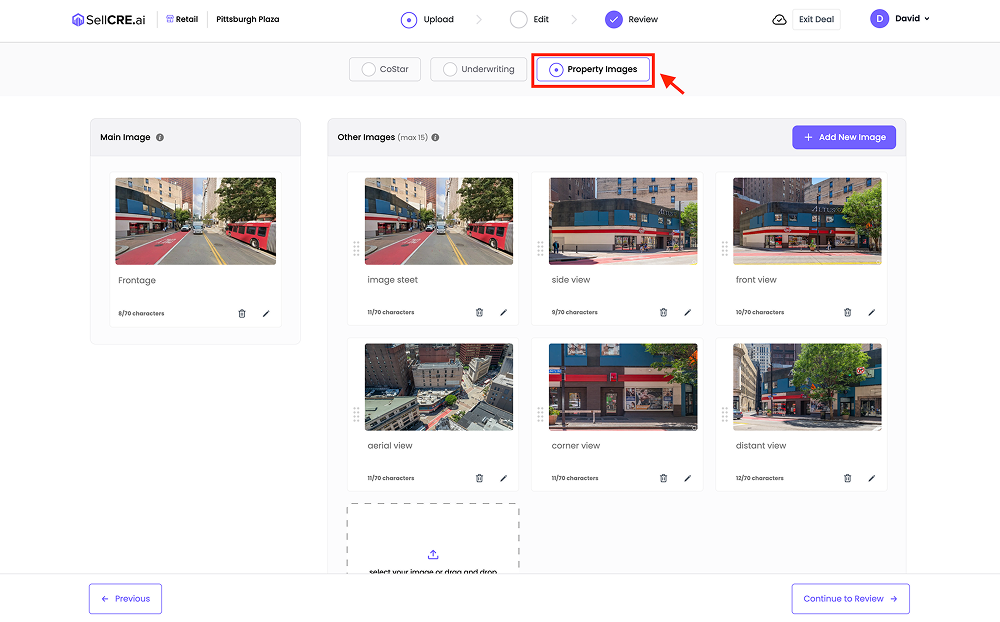
Once you're done, return to the editor and click the “Refresh” button.
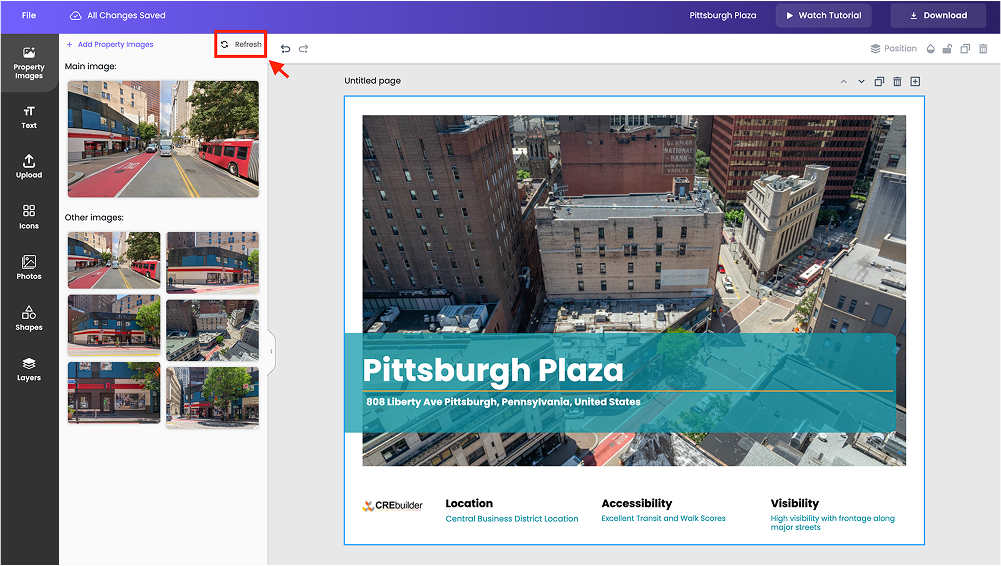
Your newly uploaded images will now appear in the Property Images tab.
Option 2: Upload Directly in the Editor
Click the “Upload” tab in the left sidebar.
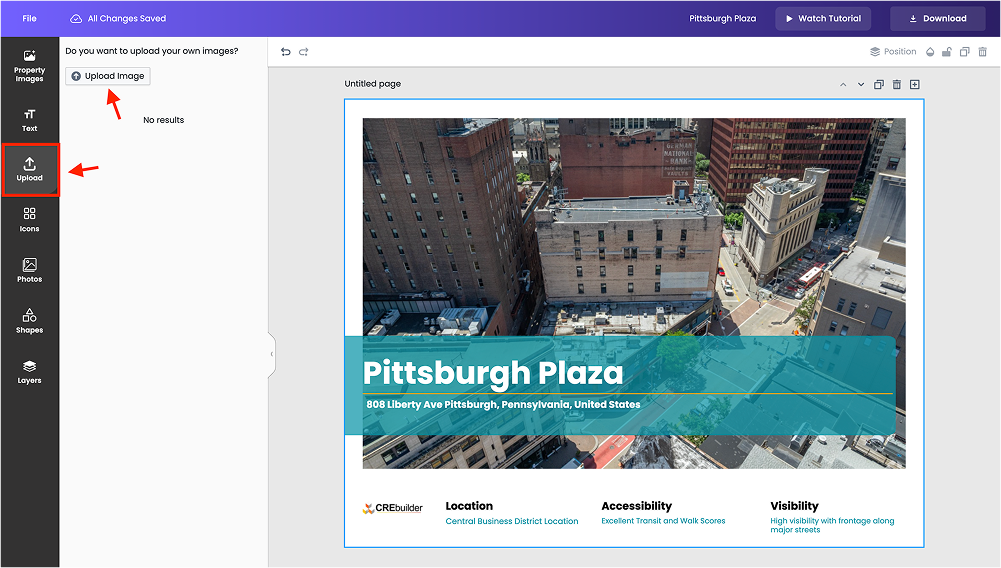
Choose images directly from your device to upload.
Once uploaded, your images will appear instantly in the Upload section.
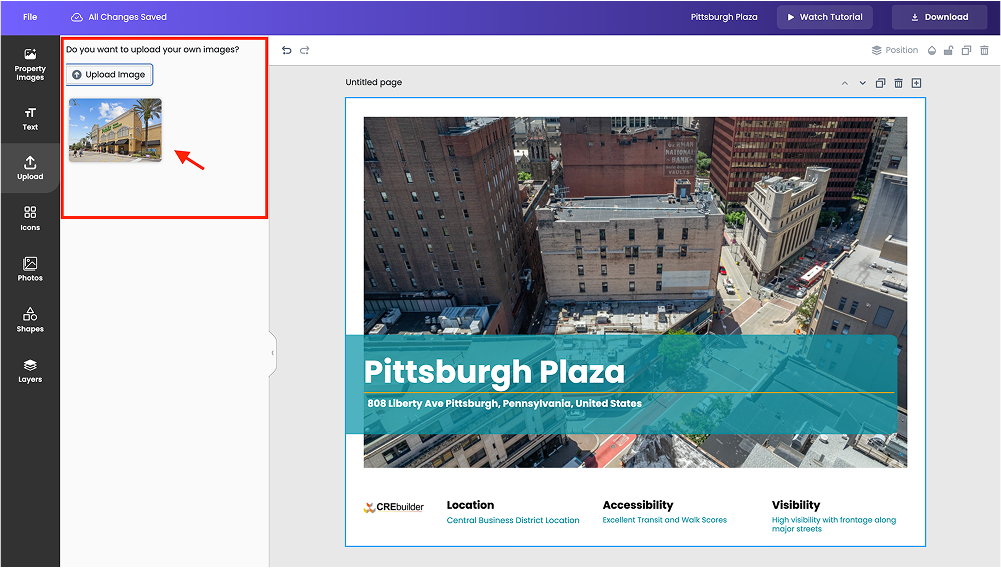
Simply drag and drop any image onto a page to replace or add visuals in your OM.
Was this article helpful?
That’s Great!
Thank you for your feedback
Sorry! We couldn't be helpful
Thank you for your feedback
Feedback sent
We appreciate your effort and will try to fix the article